Skip to content

Onboarding a New Brand - Software Tools

Onboarding Video

Step-by-step Onboarding

1. Get Store ID in Otter portal

  1. You can find it in the Otter Developer portal: developer.tryotter.com.
  2. Click the Orbital Kitchens POS.
  3. Go to StoresOnboarded.
  4. Find the newly created brand and copy the External Store Id.

2. Update or Add new brand in MongoDB

  1. If Otter sends the webhook before you create the brand on our side, the store is created automatically.
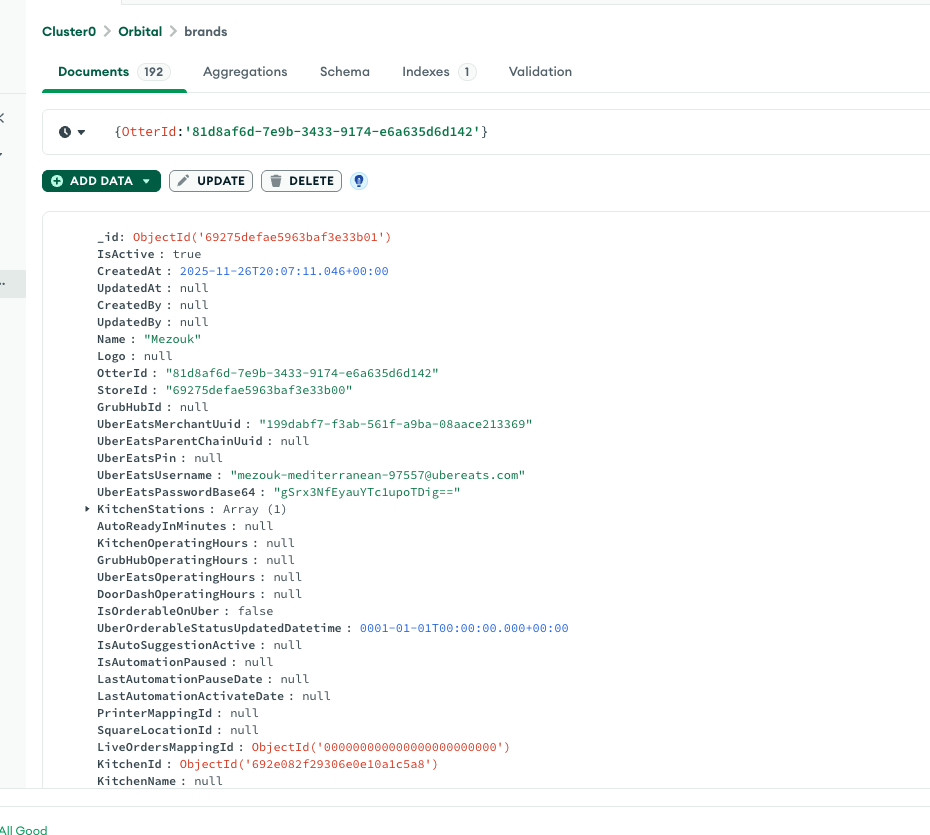
  2. In the brand collection, search for the brand by filtering the OtterId field with the External Store Id copied above. MongoDB brand search
  3. If the brand already exists, update the Name and KitchenId fields. If it does not exist, create a new brand document.
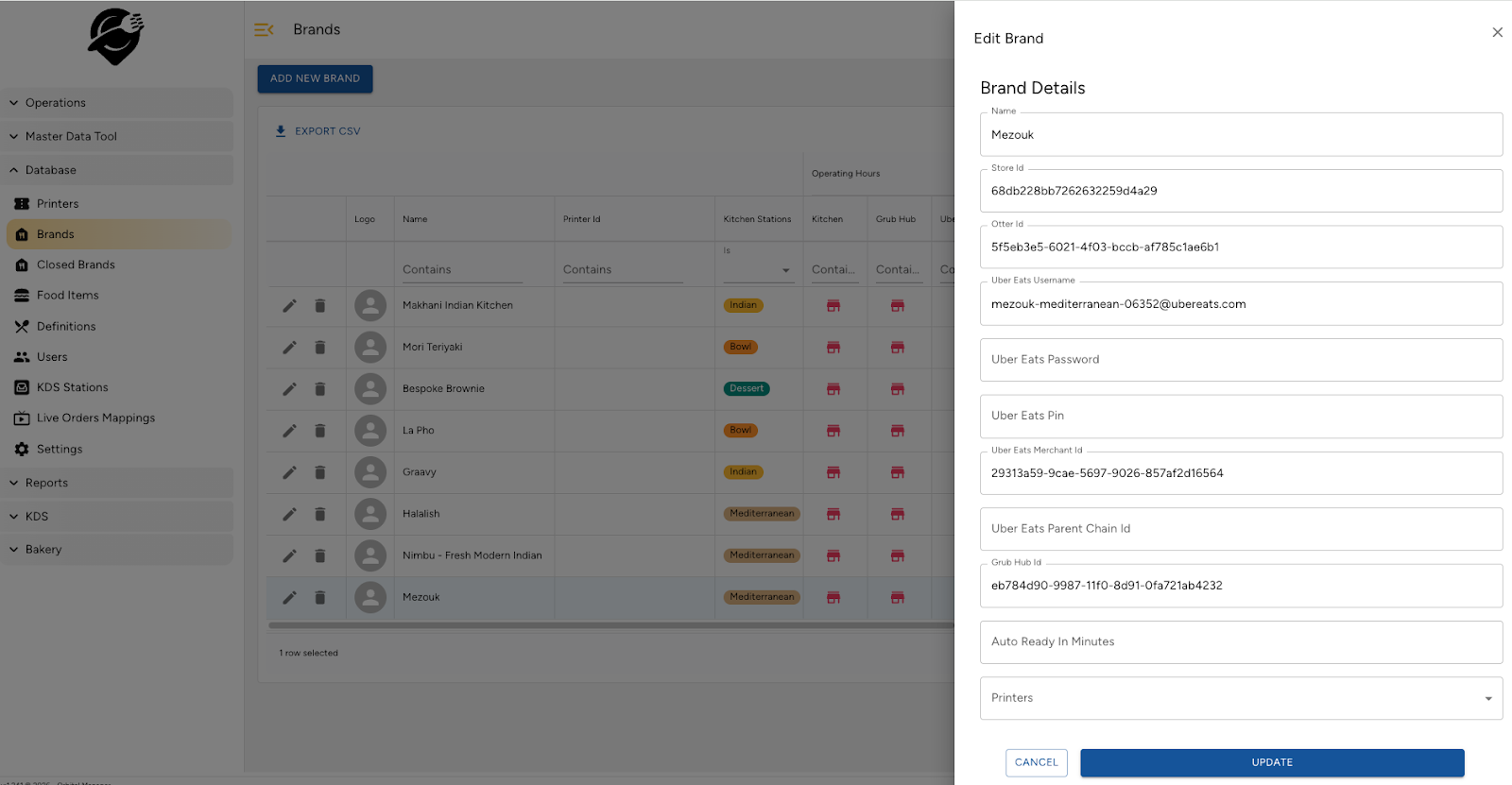
  4. Navigate to the Database/Brands tab on the OK Manager page to view the new brand, then fill in the missing fields. Brand detail
3. Fill Uber login credentials and the account PIN

Obtain Uber login credentials and the account PIN from the OK team using this Google Sheet.

4. Fill Uber merchantUuid and parentChainUuid

  1. Open the Uber Eats Manager Delivery Settings: merchants.ubereats.com/manager/settings/delivery.
  2. Inspect the site and select the newly created brand from the top dropdown.
  3. In the Network panel, find the GraphQL request with OperationName getVdfDeliverySettings. The response contains merchantUuid and parentChainUuid. Uber ID

5. Fill Grubhub ID

  1. Access restaurant.grubhub.com/settings/order-delivery-settings
  2. Go to Settings -> Order & delivery settings
  3. Select the relevant store, change the Average food prep time value, then revert it back to the original value. Inspect the API payload in the Network panel to find the Grubhub Id. In the bellow example, Grubhub Id is eb784d90-9987-11f0-8d91-0fa721ab4232 Grubhub ID

6. Live Orders Mapping and Kitchen Station

Ask Casey if you need those mappings.

7. Add new document in delivery_service_parameter collection in Mongo

  1. Create a document in the delivery_service_parameter collection using the following structure:

    {
      "BrandId": "<brandId>",
      "BrandName": "<brand name>",
      "BrandLogo": "https://example.com/logo.png",
      "UberEatsDeliveryType": 1,
      "UberEatsFees": [],
      "GrubHubFeeEtd": {
        "DeliveryEstimateMinutes": 0,
        "PickupEstimateMinutes": 0,
        "Zones": []
      },
      "KitchenId": "<kitchenId>"
    }
    
  2. In OK Manager, navigate to Delivery Services, find the new brand, select the checkbox, and click Synchronize Selected at the top. If everything is correct, you will see the ETD and fee values populated.

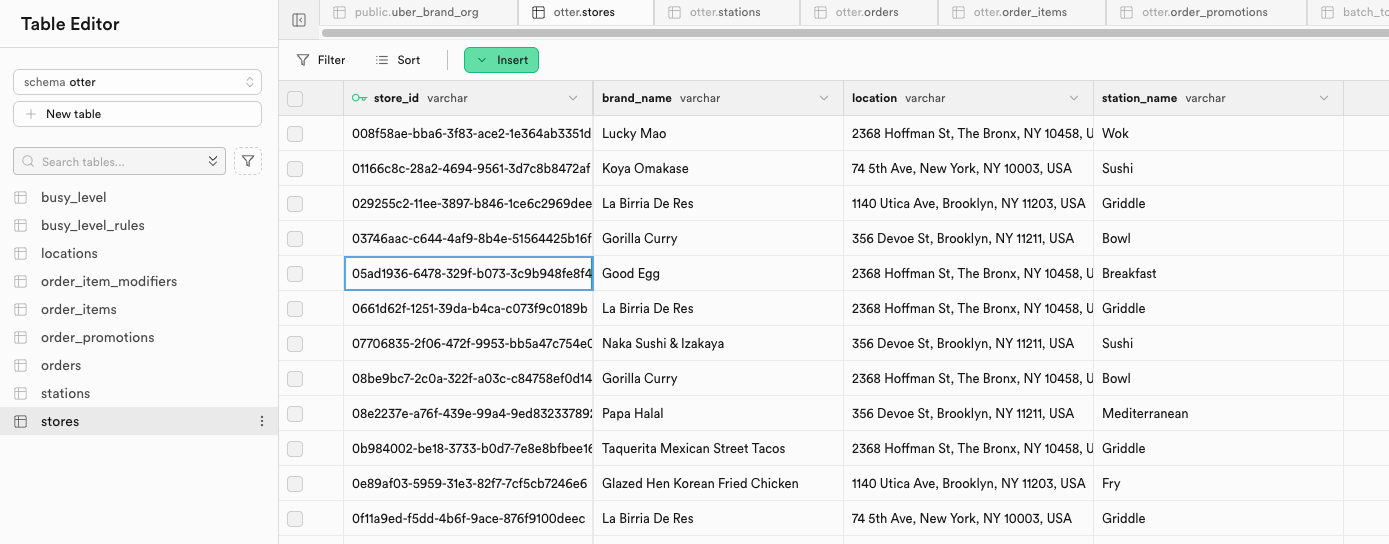
8. Add a new row in otter.stores table in Posgres Supabase

store_id is External Store Id in step 1
Store Supbase